Project Templates
Category: Project Management Section: Projects Last Updated: 2024-08-22
The Project Template is an important first step in establishing a Project. When establishing a Project Template you will be able to set out the forms to be used at each step, any conditions associated with each step and any approval flows that might be required for each step. This defines the parameters for each Project you start from this template.
Clicking on the '+ New Project Template' button will launch the Project Template in edit mode and require you to enter the Project Template details in the Settings modal.
Settings
Describes the template, what it does and when it should be used. This is a general description
Project Name: This is the name of the template. Use this name to describe the template. This is also the name that will be used in the Project Template search
Project Description: This is the description of the project template
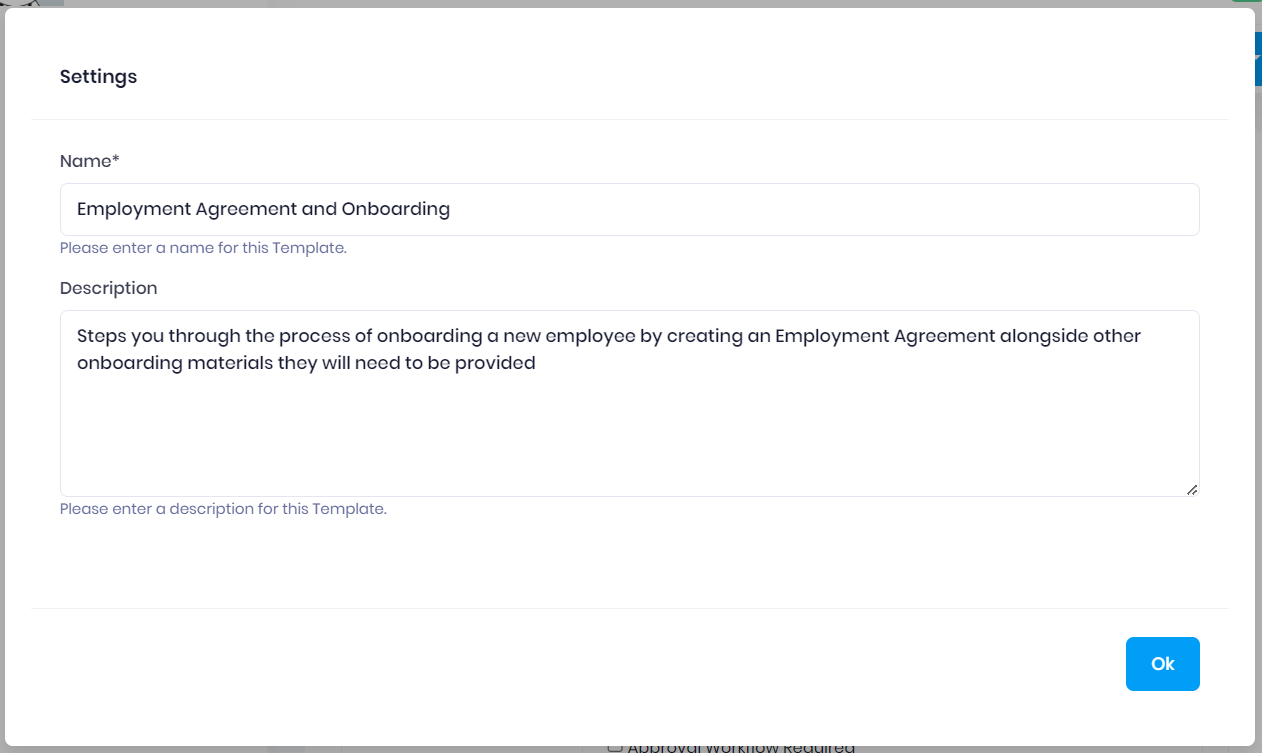
Click Ok to save these settings and start adding steps.
You can always return to the Settings modal by clicking the Settings button in the Project Template header menu
Steps
The Steps tab sets out all the forms a user might need to fill out/ complete in order to close a Project. You can add as many project steps as is necessary.
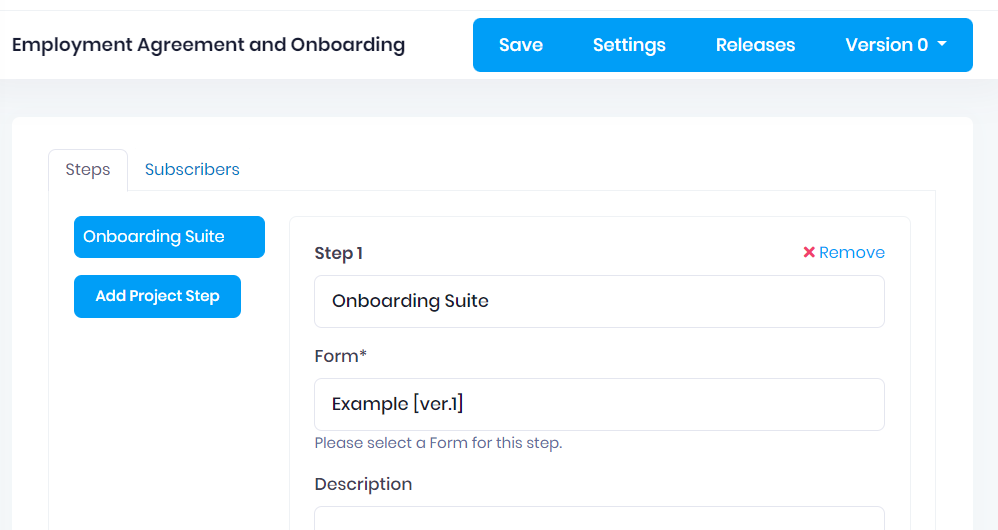
Simply click + Add project step to create a new step in the Project.
For each step you will be required to provide the following information:
Project step name: This is the name of the step as it will be presented to the user
Form: This is the form that will be used to collect data for that step
Description: This is the description of the step as it will be displayed to the user
Filter
Approval workflow required
Order: this determines the order of the step in the list.
A Project template must have at least one step with a form selected to be able to be saved. We recommend you save your template after defining your first step.
Filter
Step filtering allows you to decide which steps in the Project should be displayed to a user based on data inputs. For example you might want to show Step 2 when the Contract Value field in Step 1 is greater than $50,000 or only show Step 3 once the status of Step 2 moves to Final.
We use the common Xpath framework to build and/or conditions for each step, just as we do for email and document template filtering.
To filter data from a specific step based on its status being Final, use the following Xpath:
//*[name='StepName'][status='Final']Approval Workflows
As part of the Project template framework we have built some basic workflows for our users.
Selecting the checkbox Approval Workflow required determines if the step in the project requires a "Review" and "Approval" process. You can find out more about project workflows in our article on Working through a Project.
Deleting a step
Deleting a Step is as simple as clicking the remove icon above the step name field.
Once you are satisfied with all your steps make sure to save your template. Remember you cannot save your Project Template without at least one defined step.
Sharing a Project Template for Edit
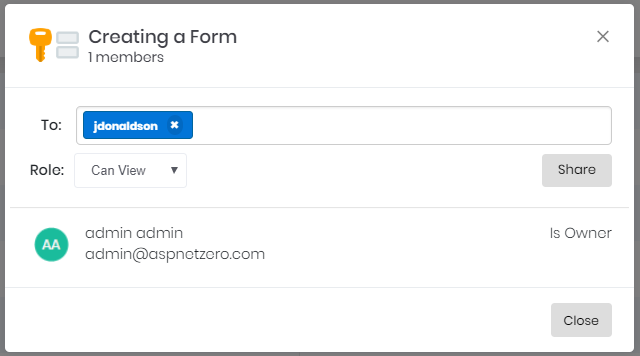
To allow other users to edit a project template, you will need to Share the project template with them.
Go to the Project Templates page from the left-hand navigation menu and make sure you are in the 'Your Project Templates' tab, then select 'Share to User or Team' from the project template's action menu.
Simply begin typing in the username of the user (or team name of the team) that you want to share the project template to and select them from the list along with any subsequent other users or teams, assign their permission to Can Edit, and click Share to finalise your choices.
Sharing a Project Template for Starting a Project
Sharing Project Templates to be used by yourself or other users is explained in greater detail in our Project Release Management article.
Put simply, a Project Template has Subscribers who receive a Deployment once a Release is made available to the Environment they are subscribed to. Individual users in that Tenancy must then have the project subscription shared to them, to be able to start the Project. Subscribers are set in the edit view of a Project Template, under the Subscribers tab.
Share Project Template to another Tenant for Starting a Project
Sometimes you may want to allow an external tenant who is also on Syntaq to start projects from your template. This is generally only used if there is another law firm or business that you have agreed to let use your defined processes, say as part of a licensing or service agreement. They will not have the ability to modify your project template, and you will not be able to see any data relating to the projects started from that template.
You will need to know their exact tenant name in order for the share to work. The admin of that tenancy will also have to accept the shared project template.
Editing a Project Template
You can edit an project template by searching for the project template you want to Edit and clicking edit in the Actions menu.
Note that changes will not be made to any future Projects started from this template until the changes are wrapped in a release, deployed to subscribers and accepted by the tenant admins.