How to use the Rules Builder
Category: Form Builder Section: Rules Builder Last Updated: 2024-08-22
The Rules Builder lets you create logic in your forms without writing code. Use it to:
- Set field values automatically
- Show or hide fields based on conditions
- Enable or disable fields dynamically
Access the Rules Builder from the Logic Menu at the top of the Form Builder.
Managing Rules
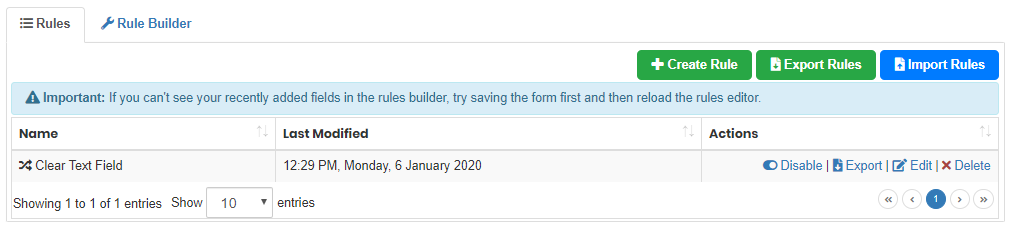
The Rules page displays all your saved rules. From here you can:
| Action | Description |
|---|---|
| Create Rule | Build a new rule |
| Export | Save rules to use in other forms |
| Import | Load rules from another form |
Individual Rule Actions
Each rule has four quick actions:
- Disable — Stop the rule from running without deleting it
- Export — Save the rule externally for use elsewhere
- Edit — Modify the rule configuration
- Delete — Remove the rule permanently
TIP
Sort your rules by clicking the arrows beside Name or Last Modified.
Creating a Rule
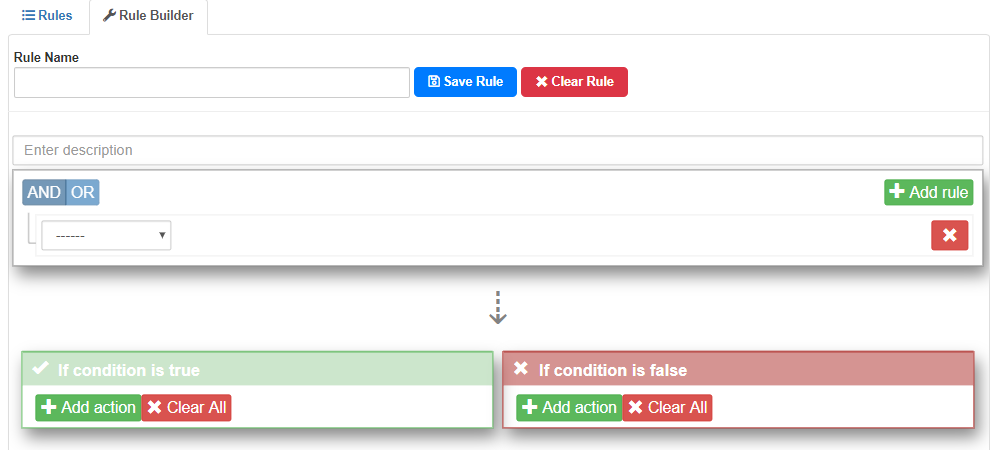
Click Create Rule or the Rule Builder tab to open the rule editor.
Step 1: Name Your Rule
Give your rule a clear, descriptive name. For forms with multiple pages, consider numbering rules by page (e.g., "Page 1 - Show Address Fields") so they group together when sorted.
Step 2: Plan Your Logic
IMPORTANT
Work backwards when creating rules:
- First, decide what action you want (e.g., hide a field, set a value)
- Then, define the conditions that trigger that action
AVOID
Don't create separate rules that hide/show the same field. Combine all conditions for that field into a single rule.
Writing Conditions
Each condition requires three parts:
| Component | Description |
|---|---|
| Field | The field to evaluate |
| Operator | How to compare (equals, contains, etc.) |
| Value | What to check for |

TIP
The field dropdown shows all fields from the last time you saved your form. Make sure to save before opening the Rules Builder!
Combining Conditions
Click +Add rule to add multiple conditions. Use the toggle to choose:
- AND — All conditions must be true
- OR — Any condition can be true
Adding Actions
Actions run when conditions are met (True) or not met (False).

Available Actions
| Action | What it does |
|---|---|
| Set Value | Assigns a specific value to a field |
| Show | Displays the field (auto-hides when false) |
| Hide | Hides the field (auto-shows when false) |
| Disable | Makes the field read-only |
| Enable | Makes a read-only field editable |
| Show Message Box | Displays an alert (currently unavailable) |
TIP
Show/Hide actions automatically toggle. You don't need both — just use one!
Context Setting
The Context dropdown controls scope:
- Entire Form — Action applies form-wide
- Same Repeat — Action applies per repeat row
WARNING
When using "Same Repeat", keep your condition fields in the same repeat section. Fields outside the repeat will trigger actions on every row.
When Rules Aren't Enough
If the Rules Builder can't handle your logic, use a Script Field instead:
- Create a script field that returns
trueorfalse - Build a rule that shows/hides based on that script field's value
This approach avoids issues with required fields becoming inaccessible when hidden.
LEARN MORE
For complex conditions, see Using the Logic Builder.